


Table of Contents
- What Smart Plugs Do and Why They Save Energy
- Understanding Phantom Power and Standby Energy Consumption
- Step 1: Choose the Right Smart Plug for Your Devices
- Step 2: Install and Connect Your Smart Plug
- Step 3: Set Up Smart Plug Energy Monitoring
- Step 4: Create Smart Plug Automation Schedules
- Common Mistakes to Avoid
- Frequently Asked Questions
Last Updated: September 20, 2026
What Smart Plugs Do and Why They Save Energy
Smart plugs turn standard wall outlets into controllable power sources, and learning how to set up smart plugs for energy saving lets you manage which devices get electricity and when. They eliminate phantom power, electricity consumed by devices in standby mode, by cutting power completely when you're away or asleep. You control them from your phone or set them to turn on and off automatically, eliminating the need to manually flip switches. Most households waste energy on devices left plugged in 24/7 (televisions, coffee makers, chargers, gaming consoles). Smart plugs stop that waste by disconnecting power when devices aren't needed.
Understanding Phantom Power and Standby Energy Consumption
Phantom power is electricity consumed by devices when they're off or in standby mode (also called standby energy or phantom load). It shows up on your utility bill every month, even though you're not actively using the device.
Common culprits include:
- Televisions and cable boxes (3-10 watts in standby)
- Computer monitors and printers (1-5 watts in standby)
- Phone chargers left plugged in (0.1-0.5 watts in standby)
- Coffee makers with clocks and displays (3-8 watts in standby)
- Gaming consoles in rest mode (10-15 watts in standby)
- Microwave ovens with clocks (3-7 watts in standby)
- Wireless routers (5-10 watts continuous)
Phantom power is invisible but costs money daily. Standby mode lets devices respond quickly when needed, but the tradeoff is continuous power draw.
Calculating Your Household Phantom Load
A single device might only use 2-5 watts in standby, but the math reveals the true cost:
Formula: (Wattage × Hours per day × Days per year) ÷ 1,000 = Annual kilowatt-hours
Example: A cable box drawing 8 watts in standby, running 24 hours daily:
- (8 × 24 × 365) ÷ 1,000 = 70 kilowatt-hours per year
At an average residential electricity rate of $0.14 per kilowatt-hour (typical across most regions), that single device costs approximately $9.80 per year in phantom power alone.
Multiply that by 10 devices across your home: 50 watts continuous draw = 438 kilowatt-hours per year, or roughly $61 annually. For a household with 15-20 always-plugged devices, phantom power can account for 5-10% of total annual electricity consumption.
Which Devices Waste the Most Standby Power?
Devices with digital displays (3-8 watts), remote receivers (5-15 watts), charging circuits (0.1-1 watt), and wireless connectivity (5-10 watts) waste the most standby power. Smart plug energy monitoring lets you see exactly which devices consume power and for how long, helping you identify which ones offer the fastest return on investment when controlled by a smart plug.
Step 1: Choose the Right Smart Plug for Your Devices
Not all smart plugs work the same way. The first step is matching the right plug to your device's power needs.
Check your device's wattage rating on a label on the back or bottom. Smart plugs have maximum wattage limits, and exceeding them can damage the plug or create a fire hazard.
Most smart plugs handle 15 amps or less, which covers standard household devices. But high-power equipment like space heaters, air conditioners, or large power tools need special consideration. Don't use a standard smart plug for these.
Consider whether you need a single outlet plug (compact), power strip style (multiple outlets), built-in energy monitoring (real-time consumption), or voice assistant compatibility (Amazon Alexa, Google Home). Energy monitoring plugs cost more but let you track consumption. Voice assistant compatibility matters if you use smart home automation.
Step 2: Install and Connect Your Smart Plug
Installation is straightforward, and understanding how to set up smart plugs for energy saving begins with this simple first step. Plug the smart plug directly into a wall outlet. Then plug your device into the smart plug.
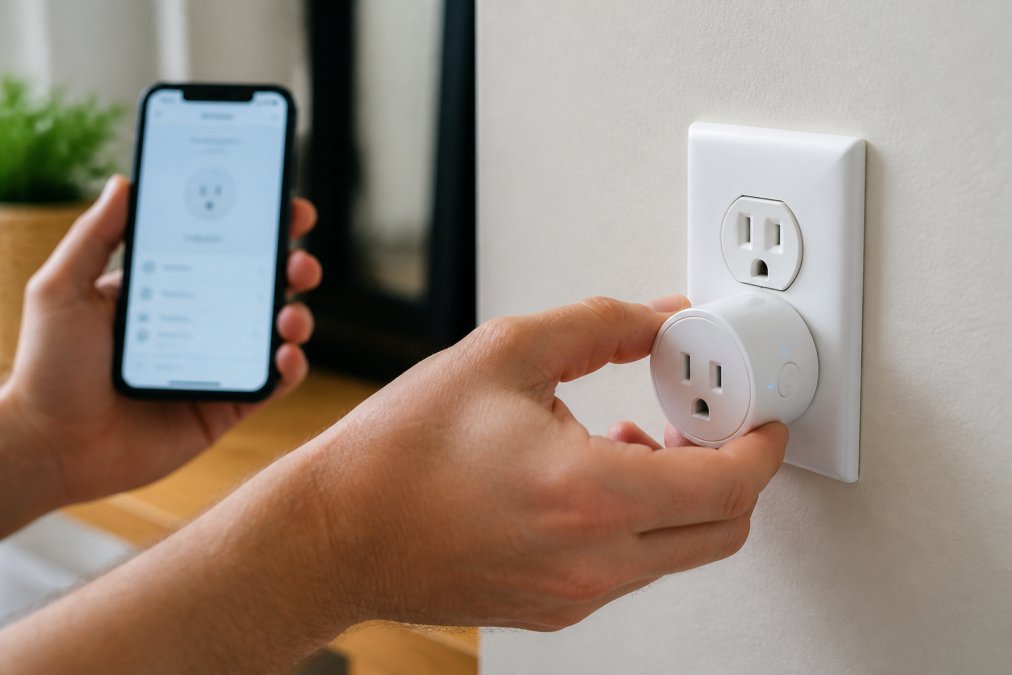
Download the manufacturer's app on your smartphone. Create an account or sign in if you already have one. The app will walk you through pairing the plug to your home WiFi network.
Most smart plugs connect to 2.4 GHz WiFi. If your router broadcasts both bands, connect to 2.4 GHz. The app will prompt you to select your network and enter your WiFi password.
Once paired, the plug should appear in your app dashboard. You'll see options to turn it on and off remotely. Test it by toggling the switch in the app. The device should power on and off immediately.
If connection fails, verify your WiFi password, move closer to the router, restart the plug, or check that your router supports the plug's WiFi standard.
Some plugs require a hub to function. Check the product details before purchasing. If a hub is needed and you don't have one, you'll need to buy it separately.
Step 3: Set Up Smart Plug Energy Monitoring
Energy monitoring shows real-time power consumption and helps identify which devices waste the most electricity. Most apps display current wattage, daily consumption, and monthly/yearly totals. A device showing 50 watts running 8 hours daily uses 0.4 kilowatt-hours per day, or roughly 146 kilowatt-hours annually.
Track devices for at least a week to see patterns. Some devices use more power at certain times. Your coffee maker might spike to 1,500 watts during brewing, then drop to 5 watts in standby.
Use this data to make decisions. If a device shows high standby consumption, it's a good candidate for a smart plug schedule. You can set it to power off automatically when you're not home.
Compare devices to find your biggest energy consumers. Usually, heating and cooling equipment use the most power. But phantom loads from multiple devices add up surprisingly fast.
Many smart plugs let you set energy alerts. You can receive notifications if a device exceeds a certain wattage threshold. This helps catch problems like a stuck compressor or a device that's malfunctioning.
Step 4: Create Smart Plug Automation Schedules
Automation is where real energy savings happen. Instead of manually turning plugs on and off, set schedules that run automatically based on your daily routine.
Start with devices you use at predictable times. Your coffee maker needs power in the morning. Your office equipment needs power during work hours. Your entertainment systems need power in the evening.
Most apps let you create schedules with these options:
- Turn on at a specific time
- Turn off at a specific time
- Repeat daily, on weekdays, on weekends, or custom days
- Create multiple schedules for different routines
Example schedule: Turn off living room entertainment at 11 PM every night. Turn it back on at 5 PM daily. This prevents standby power consumption overnight.
Another example: Office equipment turns on at 8 AM on weekdays.
Critical Safety Considerations for Specific Devices
Not every device is safe to cut power to abruptly. Before automating a device, verify it can handle an instant power loss:
Devices that require graceful shutdown:
- Desktop computers and servers, Abrupt power loss can corrupt files and damage the hard drive. Use smart plugs only for computers that support instant-off (like gaming PCs with SSDs), or pair the smart plug with a shutdown command sent via your smart home routine 30 seconds before power cuts.
- Smart TVs and streaming devices, Most modern smart TVs handle instant power loss, but some older models may experience corrupted settings or slow boot times. Test by manually unplugging for 10 seconds; if the TV reboots normally, it's safe to automate.
- Network-attached storage (NAS) and backup drives, These devices write data continuously. Cutting power mid-write can cause data loss. Only automate if the device has a scheduled shutdown feature you can trigger first.
- Printers, Instant power loss during a print job can jam paper or damage the print head. Set schedules to power off only during hours when printing never occurs.
Devices that are safe to automate:
- Coffee makers, toasters, and small kitchen appliances (no active processes)
- Cable boxes and set-top boxes (designed for instant power loss)
- Phone chargers and laptop chargers (no data loss risk)
- Entertainment systems and speakers (safe to power off instantly)
- Fans, humidifiers, and space heaters (no data or mechanical risk)
Avoiding Automation Conflicts
If you use multiple smart home platforms (Amazon Alexa, Google Home, Apple HomeKit, Samsung SmartThings), conflicting routines can cause unexpected behavior:
- Overlapping schedules: If two routines try to control the same plug at the same time, the last command wins. Review all active routines to prevent conflicts.
- Voice command overrides: If you manually turn on a plug via voice command, it may conflict with a scheduled turn-off. Most apps let you set a "lock" to prevent manual overrides during critical times.
- Routine delays: Smart home routines can lag 10-30 seconds. If you need precise timing (e.g., powering off a device exactly at 6 PM), test the actual execution time and adjust your schedule accordingly.
Common Mistakes to Avoid
Plugging high-power devices into standard smart plugs. Space heaters, air conditioners, and large appliances exceed most smart plug limits. This creates a fire risk. Use dedicated smart switches for high-power equipment instead.
Frequently Asked Questions
Can a smart plug help me save electricity?
Yes. Smart plugs reduce phantom power, the electricity devices draw while in standby mode. By automating when devices turn on and off, you can cut idle energy consumption significantly. Most households lose 5-10% of their energy budget to phantom loads, so smart plugs directly address this waste and lower your utility bill.
What devices should not be used with smart plugs and why?
Avoid connecting devices with high inrush current, such as refrigerators, microwave ovens, and large power tools. Smart plugs are also not suitable for medical equipment, safety devices, or anything requiring constant power. Additionally, do not use smart plugs with devices that have built-in batteries or uninterruptible power supplies, as the switching can damage internal circuits.
How do I automate smart plugs for energy savings?
Use your smart plug's app or voice assistant to set schedules. Program office equipment to turn off at 6 PM on weekdays, entertainment systems to shut down at midnight, and coffee makers to activate 10 minutes before you wake. Automation removes the need to remember manual on/off actions and ensures devices never stay in idle states longer than necessary.
Do smart plugs still use electricity when off?
Smart plugs themselves consume a small amount of power to stay connected to your home network and receive commands. However, this standby energy draw is minimal, typically less than 1 watt. The energy savings from cutting power to connected devices far outweigh the smart plug's own consumption, making the net effect a substantial reduction in your overall energy consumption.


