


Table of Contents
- Essential Tech Accessories for Remote Workers: The 2026 Shortlist
- Monitor Stands and Screen Real Estate
- Ergonomic Home Office Equipment That Actually Helps
- Productivity Gadgets for Remote Employees
- Audio and Connectivity Gear for Video-Conferencing
- Power, Charging, and Cable-Management Essentials
- Small-Space and Apartment Optimization for Remote Work
- Conclusion
- Frequently Asked Questions
Last Updated: September 11, 2026
Essential Tech Accessories for Remote Workers: The 2026 Shortlist
Essential tech accessories for remote workers are the peripherals that turn a kitchen table into a functional workstation: monitor mounts, charging stations, audio gear, and the small tools that keep a full day running. This MixVanta shortlist covers the categories that matter most and what to prioritize before you buy.
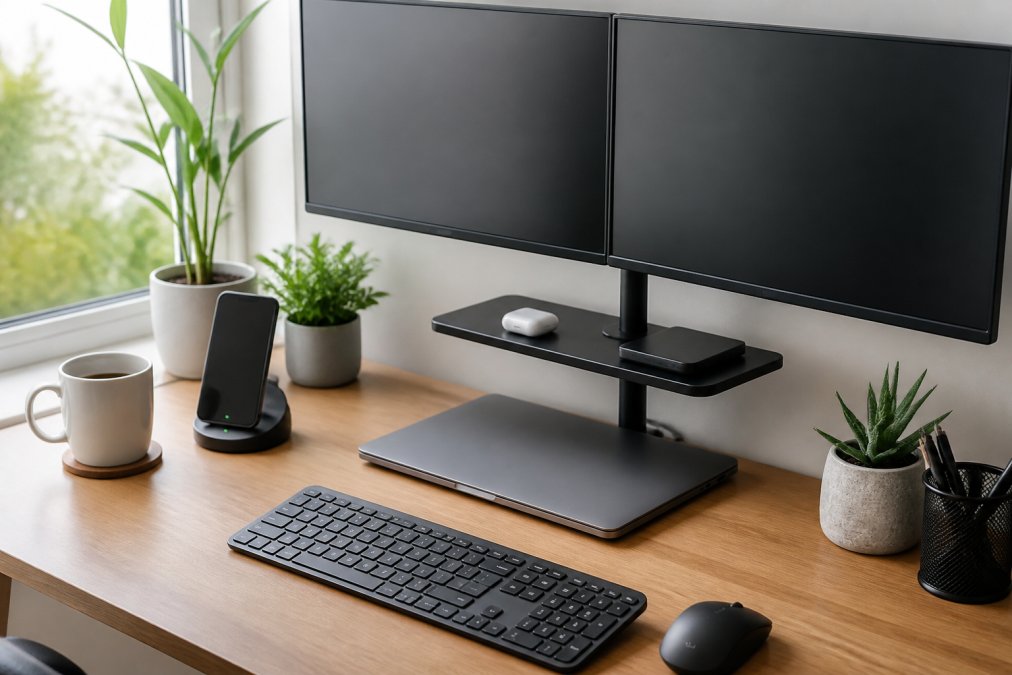
The stakes are higher than most people assume. Remote and hybrid arrangements have become a permanent fixture of professional life, and the U.S. Bureau of Labor Statistics telework data shows how deeply home-based work now shapes the average knowledge worker's week. When your office is also your living room, every weak link in your setup, a slow charger, a monitor at the wrong height, a headset that picks up the dishwasher, shows up in your output.
Below, we break down the seven categories worth your budget, plus two angles most buying guides skip entirely: small-space optimization and network security.
Monitor Stands and Screen Real Estate
The highest-return upgrade for most remote workers is more screen real estate, and a monitor stand is the cheapest way to get it. Stacking two displays eliminates the constant alt-tab cycle that fragments focus.

Ergonomic positioning matters as much as the extra pixels. A display raised to eye level reduces neck flexion, which is the root of most end-of-day stiffness. The OSHA computer workstation guidance outlines how monitor height, viewing distance, and chair adjustment interact, and it is worth reading before you mount anything.
32-Inch Dual-Screen Monitor Stand
For anyone running two displays, the 32-Inch Dual-Screen Monitor Stand at $228.99 is the anchor piece of a serious desk setup. It supports two monitors from 13 to 32 inches, rotates a full 360 degrees, and is built from aluminum alloy with a 10 to 15 kg capacity for the pair.
The practical benefit is desk recovery: elevating both screens frees space underneath for a keyboard, notebook, or charging dock, which matters in a shared room. The aluminum frame is heavy, so you will want a solid desk surface rather than a hollow-core table.
| Accessory | Price | Primary Function | Best For |
|---|---|---|---|
| 32-Inch Dual-Screen Monitor Stand | $228.99 | Dual monitor mounting, 360° rotation | Multi-window workflows |
| 3-in-1 Foldable Wireless Charger | $34.99 | Charges phone, watch, earbuds | Apple device users |
| Folding LED Light Touchscreen Pen | $17.99 | Stylus, pen, LED light | Note-taking, touchscreens |
| Magnetic Split Bluetooth Subwoofer Speaker | $65.73 | Portable audio, HD calling | Calls and off-hours audio |
| Smart Digital Thermal Bottle | $25.99 | Temperature display, insulation | All-day hydration |
Ergonomic Home Office Equipment That Actually Helps
Ergonomic home office equipment only pays off when it corrects a specific problem. The three that consistently earn their place are a height-adjustable surface, an external keyboard and mouse that let you push the laptop away, and a monitor at eye level.
A common mistake is buying a standing desk first and everything else never. If your screens stay low, standing just moves the strain from your lower back to your neck. Fix the display height before you fix the chair. The OSHA computer workstation guidance treats monitor height, viewing distance, and chair adjustment as one connected system, which is why changing one without the others rarely resolves the discomfort.
The Four Adjustments That Matter Most
Most practitioners find that four settings do the heavy lifting:
- Seat height: feet flat on the floor, thighs roughly parallel to the ground, knees at about a 90-degree angle.
- Monitor height: the top third of the screen at or slightly below eye level, about an arm's length away.
- Keyboard and mouse position: elbows near 90 degrees, wrists straight, shoulders relaxed rather than shrugged.
- Support contact: lower back supported by the chair's lumbar curve, not by leaning forward onto the desk.
If you work from a laptop alone, a stand plus an external keyboard costs far less than a new desk and solves the same problem. The laptop screen goes up; your hands come down.
Keyboards, Mice, and the Repetitive Strain Question
Ergonomic peripherals deserve the same scrutiny as furniture. A split or tented keyboard reduces wrist pronation, the inward rotation that strains the forearm. A vertical mouse keeps the forearm in a neutral handshake position instead of a palm-down twist. Neither is a cure-all, but both change the angle at which strain accumulates.
Accessibility-Focused Gear Most Guides Skip
This is the angle nearly every buying guide ignores: ergonomic tools for users with specific physical needs or repetitive strain injuries. If you have carpal tunnel, tendonitis, or limited grip strength, the standard "best keyboard" list is not written for you.
The categories worth researching:
- Vertical and joystick mice that shift the workload off the wrist entirely.
- Foot pedals that map common shortcuts so repetitive keystrokes move to a larger muscle group.
- Adjustable negative-tilt keyboard trays that let the wrists rest in a neutral or slightly declined position.
- Voice input software paired with a quality microphone, which can replace typing for extended stretches.
- Switch-accessible input devices for users with limited mobility, often built around a single large button or sip-and-puff control.
Accessibility gear is often treated as a specialty purchase when it is really the same ergonomic logic applied more precisely: keep the body in neutral, distribute load across larger muscle groups, and reduce repetition. If a standard peripheral leaves you compensating with your shoulders or gripping harder than you should, it is the wrong peripheral regardless of reviews.
Productivity Gadgets for Remote Employees
Productivity gadgets for remote employees earn their keep by removing small daily frictions: dead batteries, tangled cables, misplaced pens. Two stand out for how often they get used rather than how clever they look.
3-in-1 Foldable Wireless Charger
The 3-in-1 Foldable Wireless Charger at $34.99 charges an iPhone, Apple Watch, and AirPods simultaneously from one 30W magnetic station. It folds flat for travel, making it the rare desk accessory that also works in a hotel room.

The honest limitation: magnetic alignment is calibrated for Apple's ecosystem. Android users with non-magnetic cases should look at a stand-style charger instead.
Folding LED Light Touchscreen Pen
The Folding LED Light Touchscreen Pen at $17.99 combines a ballpoint, a stylus tip, and an LED light in one folding body. If you annotate documents on a tablet or sign paperwork on a phone screen, it replaces three things rattling around a drawer.

Audio and Connectivity Gear for Video-Conferencing
Audio quality decides how you are perceived on a call more than video does. A viewer forgives a soft image far faster than echo, clipping, or a fan roaring in the background. A call where you sound clear is a call where you are trusted.
Headsets: The Default Choice for Calls
For most remote workers, a headset is the single most important audio purchase. Two form factors worth knowing:
- Over-ear with active noise cancellation for open-plan or noisy homes. ANC removes steady low-frequency noise like HVAC hum and traffic, though it does less against sudden sounds like a dog barking.
- On-ear or earbud-style with a boom mic for portability and all-day comfort. Lighter, but usually weaker at blocking background noise from your end.
Look for a headset with a boom microphone rather than relying on your laptop's built-in mic, which picks up keyboard clatter, fan noise, and room reflections. A boom mic near your mouth captures your voice and rejects most of the rest. If you are on client calls all day, microphone quality is worth paying for.
Microphones: When You Want Studio-Quality Voice
A dedicated microphone makes sense if you record, stream, or want the best voice quality on important calls. The main types:
- USB condenser mics are the easiest starting point, plug-and-play with no interface required.
- Dynamic mics reject more room noise and are more forgiving in an untreated space.
- Lavalier mics clip to your shirt and are ideal for video where a large mic in frame is distracting.
Pair any microphone with a boom arm or desk stand so it sits close to your mouth, and use a pop filter to soften plosives. Position matters more than price: a modest mic placed correctly outperforms an expensive one across the room.
Speakers and the Hybrid Setup
For most home setups, a Bluetooth speaker with a dedicated microphone handles both ends of the day: hands-free calling during work hours, music after. The Magnetic Split Bluetooth Subwoofer Speaker at $65.73 uses a double-speaker unit with a neodymium magnet horn, TWS interconnection, and a 4000 mAh battery. It also supports HD calling, doubling as a conference speaker in a small room.
The trade-off is size. It is portable, not pocketable, and it will not replace a purpose-built headset if your priority is noise isolation during calls.
Connectivity: The Gear That Keeps the Call From Dropping
Audio gear is only as good as the connection behind it. Two pieces of connectivity hardware matter:
- A mesh Wi-Fi system if you work far from the router or share walls with neighbors on crowded channels. Mesh nodes hand your device off between access points so a call does not drop when you move rooms.
- A USB or Thunderbolt docking station that gives you a wired Ethernet port, so your most important calls run on a cable instead of Wi-Fi. Wired is still the most reliable path to a stable connection.
If you cannot run a cable, prioritize the 5 GHz band for calls and keep the router off the floor and out of cabinets. Signal degrades through walls, metal, and water, which is why a router tucked behind a fish tank is a common cause of dropped calls.
Power, Charging, and Cable-Management Essentials
Cable management is the difference between a workspace you can think in and one you avoid. The goal: every device has one charging path, and no cable crosses your keyboard zone.
Start with power delivery. A single high-wattage USB-C charger with enough ports can feed a laptop, phone, and accessories, removing three wall warts and the strip they require. Route cables along the back edge of the desk with adhesive clips, and leave one short charging cable accessible for the device you pick up most.
The 3 In 1 LED Fast Wireless Charger Stand at $15.06 is the budget entry point here, with a dual-coil design, Qi certification, and built-in temperature and voltage protection. It handles one device at a time but does it without the overheating complaints common to cheap pads.
For hydration breaks that do not require leaving the desk, the Smart Digital Thermal Bottle at $25.99 shows the drink temperature on a touch display and holds it for six to twelve hours.
Small-Space and Apartment Optimization for Remote Work
Small-space optimization is where most buying guides stop being useful, because they assume a dedicated room. You probably do not have one.
The strategy is vertical and multifunction. Mount displays rather than standing them on the desk so the surface underneath becomes usable. Choose accessories that serve two purposes, like a charger that folds into a stand or a speaker that handles calls and music. When the workday ends, the setup should disappear into a cabinet or fold flat.
One category worth adding regardless of room size: air quality. A compact purifier such as the Household Anion Air Purifier at $20.99 runs quietly enough for a bedroom office and helps with dust and pet odors in a sealed room.
Conclusion
The remote work setup that lasts is built around your actual constraints: screen height, charging paths, call audio, and how much space you can reclaim at 6 p.m. Get those four right and the rest is decoration. MixVanta stocks the categories covered here in one place, with free shipping over $70, a 30-day money-back guarantee, and fast handling, so you can test a monitor stand or a wireless charger without committing to a specialty retailer. Shop Now and build the desk that works as long as you do.
Frequently Asked Questions
What are the best tech accessories for a home office?
Start with a dual-screen monitor stand to raise screens to eye level and free up desk space. Add a 3-in-1 wireless charger to cut cable clutter, a high-fidelity Bluetooth speaker for calls, and an air purifier if you work in a small room. These cover the ergonomic, power, and air-quality basics that most remote setups miss. MixVanta carries all of these in one place, so you can build a complete setup without bouncing between stores.
What are some must-have items for remote workers?
The essentials are a monitor stand, a wireless charging station, a portable speaker for video-conferencing, and a thermal bottle to keep drinks at the right temperature through long shifts. A folding touchscreen pen also helps if you take notes or sign documents on a tablet. Together these address screen real estate, power delivery, audio fidelity, and hydration, which are the four things remote workers notice most after a few weeks at home.
How can I improve my home office setup for better ergonomics?
Raise your monitors so the top third of the screen sits at eye level. A dual-screen monitor stand does this while clearing desk space for your keyboard and mouse. Keep your chair at a height where your feet rest flat and your elbows sit near 90 degrees. Add a wireless charger within arm's reach so you are not twisting to plug in cables. These small changes reduce neck strain and eye fatigue over a full workday.
Are noise-canceling headphones necessary for remote work?
They help if you share space with family, pets, or street noise during calls. If your home is quiet, a high-fidelity Bluetooth speaker with a built-in mic covers most video-conferencing needs and doubles as a music speaker between meetings. The Magnetic Split Bluetooth Subwoofer Speaker from MixVanta includes HD calling and a 4000 mAh battery, so it works for both work and downtime without a second device.


