


Table of Contents
- Why Cheap Tech Deserves Better Maintenance Than You Think
- Computer Maintenance Tips That Add Years to Any Budget Machine
- How to Make a Phone Last Longer Without Buying a New One
- How to Clean Electronic Devices Safely (Without Damaging Them)
- Your Budget Tech Maintenance Checklist: Monthly, Quarterly, Yearly
- Repair or Replace? How to Decide When Cheap Tech Fails
- Conclusion: Small Habits, Longer Device Lifespan
- Frequently Asked Questions
Last Updated: October 9, 2026
Why Cheap Tech Deserves Better Maintenance Than You Think
Learning how to maintain cheap tech for longevity is mostly about small habits, not expensive tools. Budget laptops, phones, and gadgets often fail early for avoidable reasons: dust, heat, and careless charging. People replace devices that could have run for years with basic care.
The stakes are higher than most people realize. A budget machine that lasts four years instead of two cuts your yearly cost in half. That math matters for families juggling bills and for anyone who would rather spend money on something other than a new laptop.
Below, we break maintenance into seven clear steps. Each one takes minutes, and none require a repair shop.
Computer Maintenance Tips That Add Years to Any Budget Machine
Computer maintenance tips start with two things: keep the software current and keep the hardware cool. A budget laptop or desktop will match a pricier one for daily tasks if you protect it from heat and clutter. The parts that fail first are usually fans, batteries, and drives, not processors.
Consumer Reports electronics buying and care guides notes that heat is a leading cause of premature electronics failure. That makes ventilation the single highest-value habit you can build.
Software Updates, Drivers, and Performance Habits
Updates are free repairs. Operating system and software updates patch security holes and fix bugs that slow devices down. Hardware drivers keep your graphics, sound, and network running smoothly. Set updates to run automatically overnight so they never interrupt your work.
A few performance habits keep a budget machine feeling fast:
- Restart weekly instead of leaving it on for months
- Uninstall programs you never open
- Keep at least 15% of your drive free
- Turn off startup apps you don't need
- Run the built-in disk cleanup tool monthly
Defragmentation matters for older hard drives, not modern solid-state drives. Don't run it on an SSD. It adds wear with no benefit.
Storage, Heat, and Physical Care for Desktops and Laptops
Heat is the quiet killer. Laptops pull air through vents on the bottom and sides. Set them on hard, flat surfaces, never on beds, couches, or carpets. Desktops need clearance at the back and sides so air can move.
Dust buildup inside a case acts like a blanket. Blow out vents and fans every few months with short bursts of compressed air. Hold fans still with a finger so they don't spin and wear out.
How to Make a Phone Last Longer Without Buying a New One
To make a phone last longer, protect the battery and the screen first. Those two parts drive most repair bills and most upgrade decisions. A phone with a healthy battery and an intact screen can serve you for years, even a budget model.
Battery Health, Charging Habits, and Screen Protection
Battery health is the percentage of original capacity your battery still holds. You can check it in your phone's settings under battery health. When it drops low, the phone slows down and dies faster. Cheap batteries age faster than premium ones, so habits matter more.
Charging habits that protect battery health:
- Keep charge level between 20% and 80% most days
- Avoid overnight charging on a hot surface
- Skip fast chargers when you don't need speed
- Never charge in direct sun or a hot car
- Unplug once the phone is full
Screen protection is cheaper than a screen repair. A tempered glass screen protector and a protective case absorb the damage from drops. For a device you carry daily, a case like the E-Ink Phone Case adds bump and scratch protection while keeping a slim profile.

A wireless charging pad also reduces wear on the charging port, since you plug in less often. The 3-in-1 Foldable Wireless Charger charges a phone, watch, and earbuds from one spot and folds flat for travel.

How to Clean Electronic Devices Safely (Without Damaging Them)
To clean electronic devices safely, power them off, use a soft cloth, and never spray liquid directly on the device. Moisture and harsh cleaners are the two biggest causes of cleaning damage. Done right, cleaning removes dust buildup that traps heat and slows performance.
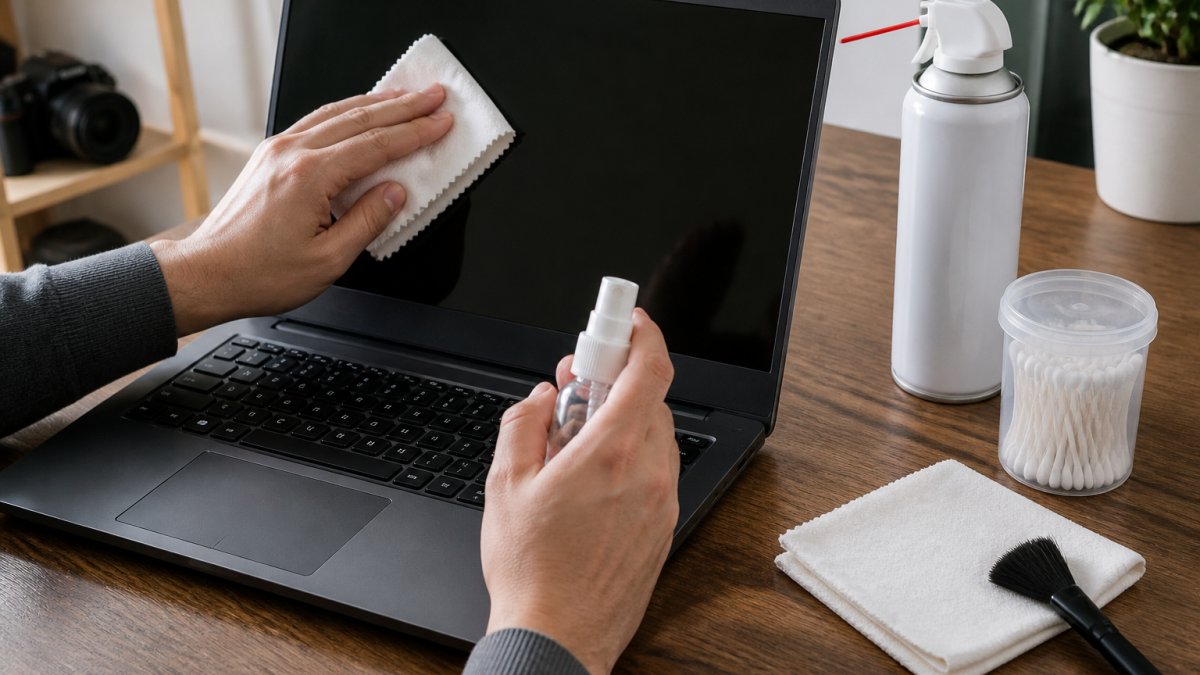
Most guides stop there. What they miss is that a phone, a laptop, a tablet, and a pair of earbuds each have different weak points, and cleaning the wrong way can cost more than the device is worth.
Tools, Materials, and Step-by-Step Cleaning
You need very little to clean electronics well. Here's what to keep on hand:
- A lint-free cloth or microfiber towel
- Isopropyl alcohol (70% or higher)
- Distilled water for dilution when needed
- Compressed air
- Cotton swabs for tight spots
- A soft-bristle brush for vents and ports
- Wooden toothpicks for port edges
Follow these steps:
3 IN 1 FOLDABLE WIRELESS CHARGER →
- Power off and unplug the device.
- Wipe the screen with a dry lint-free cloth first.
- Dampen a cloth with isopropyl alcohol, never spray the device.
- Clean vents and ports with short bursts of compressed air.
- Use cotton swabs for edges and gaps.
- Let everything dry fully before powering on.
Isopropyl alcohol evaporates fast, which makes it safer than water around circuits. Distilled water avoids the minerals in tap water that leave residue.
Device-Specific Cleaning: Phones, Laptops, Tablets, and Peripherals
Phones. The charging port is the failure point. Pocket lint compacts into a felt-like plug that blocks the cable and mimics a dead battery.
Laptops. The keyboard and the exhaust vents collect the most dust.
Tablets. The screen is the priority and the risk. Use a dry microfiber cloth in gentle circles. If a smudge won't lift, breathe on the glass and wipe again before reaching for any liquid.
Peripherals. Keyboards, mice, earbuds, and game controllers pick up skin oils and grit. For earbuds, remove the silicone tips and rinse them with plain water, then wipe the mesh with a dry cotton swab.
Your Budget Tech Maintenance Checklist: Monthly, Quarterly, Yearly
A budget tech maintenance checklist turns good intentions into a routine. Spread tasks across the year so nothing piles up. Most items take under ten minutes.
| Task | Frequency | Time Needed | Why It Matters |
|---|---|---|---|
| Wipe screens and keyboards | Monthly | 5 minutes | Removes dust buildup |
| Clear vents and fans | Monthly | 5 minutes | Prevents overheating |
| Check battery health | Monthly | 2 minutes | Spots capacity loss early |
| Run software updates | Monthly | 10 minutes | Fixes bugs and security gaps |
| Back up important files | Monthly | 15 minutes | Protects against data loss |
| Deep clean ports and vents | Quarterly | 20 minutes | Stops long-term dust damage |
| Review storage and apps | Quarterly | 15 minutes | Keeps device speed up |
| Check cables and chargers | Yearly | 10 minutes | Catches wear before failure |
Backups deserve a special mention. Storage drives fail without warning, and cheap drives fail more often. Keep two copies: one local drive and one cloud account. That single habit protects photos, documents, and work files from a total loss.
Repair or Replace? How to Decide When Cheap Tech Fails
Repair or replace comes down to cost versus remaining life. If a repair costs more than a third of a new device and the device is already several years old, replacement usually wins. If the fix is cheap and the rest of the device is healthy, repair is the better call.
That rule of thumb is a starting point, not a decision. A simple framework turns it into an answer you can act on in five minutes.
A Three-Question Decision Framework
Ask these in order:
- What does the repair cost compared to a new device? If the quoted repair is more than half the price of a comparable replacement, lean toward replacing. Between a third and a half, it depends on the next two answers.
- How old is the device, and how much life is left? A two-year-old budget phone with a healthy screen has years left. A five-year-old budget tablet is near the end of its useful life even if it works today.
- Is the failing part the only weak spot? A single worn battery on an otherwise solid device is a cheap fix. A cracked screen plus a swollen battery plus a failing charging port is a pattern, not an accident.
If two of the three answers point toward replacement, replace. If two point toward repair, repair. If it's a tie, repair when the device is under three years old and replace when it's over.
Repair Economics by Device Type
- Phones. Battery replacement is almost always worth it on a phone under three years old. Screen replacement is worth it if the rest of the phone is healthy and the repair is well under half the cost of a new one. Charging port cleaning is free; port replacement is a moderate repair.
- Laptops. RAM and storage upgrades are the highest-value repairs on budget laptops because they extend useful life for years. Keyboard and fan replacement are moderate. Motherboard or screen replacement on a budget laptop usually isn't worth it.
- Tablets. Batteries are glued in on many budget models, which makes replacement expensive relative to the device. Screen repairs on older budget tablets rarely pay off.
- Peripherals. Keyboards, mice, and earbuds are usually replace-not-repair items. A failed cable or worn ear tip is the exception.
Safe, Affordable Repair and Parts Sourcing
Before you pay for any repair, check the warranty. Many budget devices carry a one-year limited warranty, and some credit cards extend the manufacturer's warranty on purchases. Federal Trade Commission guidance on consumer product warranties and repairs explains your rights when a product fails, which helps you push back on unfair warranty denials. The FTC also warns that warranty-void stickers don't automatically void your warranty just because you opened the device.
For parts, match the part number to your exact model. Generic batteries and screens are cheaper but vary widely in quality; a reputable independent repair shop will usually source a known brand. Local independent shops often charge less than manufacturer service centers for out-of-warranty work.
Conclusion: Small Habits, Longer Device Lifespan
The devices that last aren't the most expensive ones. They're the ones that get cleaned, cooled, updated, and charged with care. Those habits cost almost nothing and add years to a device lifespan, which is the real win for a budget.
When you do need a replacement or an accessory, MixVanta makes it easy to find what you need in one place. We offer a diverse catalog of electronics and household items, trending deals, and free shipping on orders over $70. Shop Now and keep your tech running longer for less.
Frequently Asked Questions
How often should I clean my electronics?
Clean high-touch devices like phones and earbuds weekly with a dry lint-free cloth. Dust out computer vents and keyboards every one to three months using short bursts of compressed air. If you have pets or live in a dusty area, clean more often. Regular cleaning prevents dust buildup, which is one of the leading causes of overheating and shortened device lifespan.
When should I replace a device battery?
Replace the battery when it holds less than 80% of its original capacity or shuts down unexpectedly at 20-30% charge. On phones, check battery health in settings. On laptops, look for swelling or rapidly declining runtime. A replacement battery is far cheaper than a new device and can add one to two years of useful life to cheap tech.
Is a 7-year-old computer still good?
It can be, if you match it to light tasks like browsing, email, and documents. Install an SSD if it still uses a hard drive, max out the RAM, and keep the operating system updated. Once software updates stop or repairs cost more than a replacement, it is time to retire the machine.
How can I protect cheap electronics from overheating?
Keep vents and fans clear of dust, never use laptops on beds or cushions, and avoid direct sunlight or hot cars. Use a cooling pad for heavy tasks and give devices breaks during long sessions. Heat is the fastest killer of budget electronics, so ventilation and regular cleaning matter more than any accessory.


